Model deployment
Model deployment means preparing model serving. Before deploying a model, confirm that the required RBLN ServingRuntime and HardwareProfile are registered in the OpenShift AI dashboard under Settings.
-
Create a project
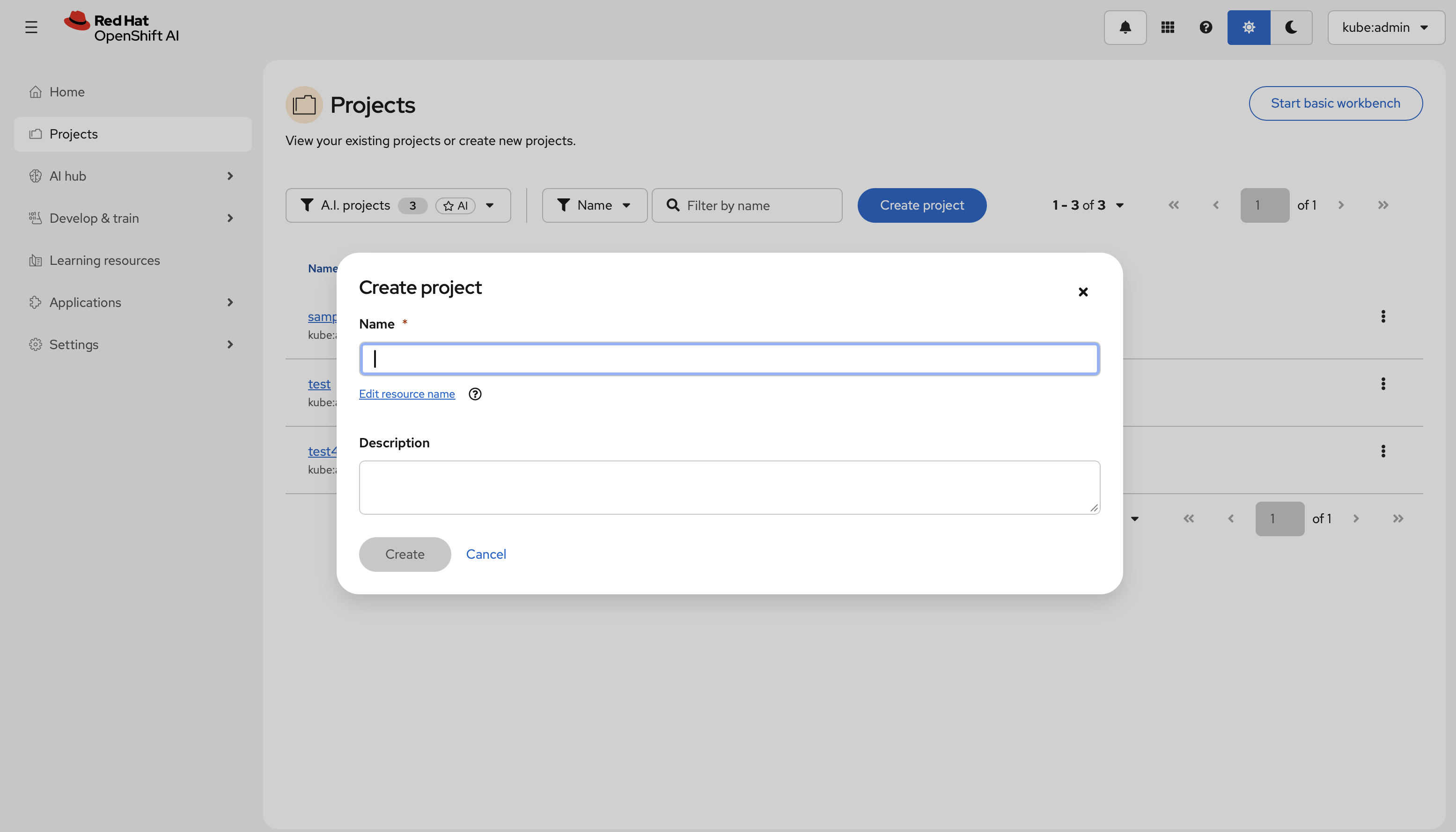
- In the left menu, click Projects, then select Create project.
- Enter a name and description, then confirm. All subsequent resources—connections, deployments, and permissions—are scoped to this project.
-
Prepare storage and create a data connection
- Provision a storage backend for your model artifacts. Supported options include an S3-compatible object store, a URI-based repository, or a PersistentVolumeClaim (PVC).
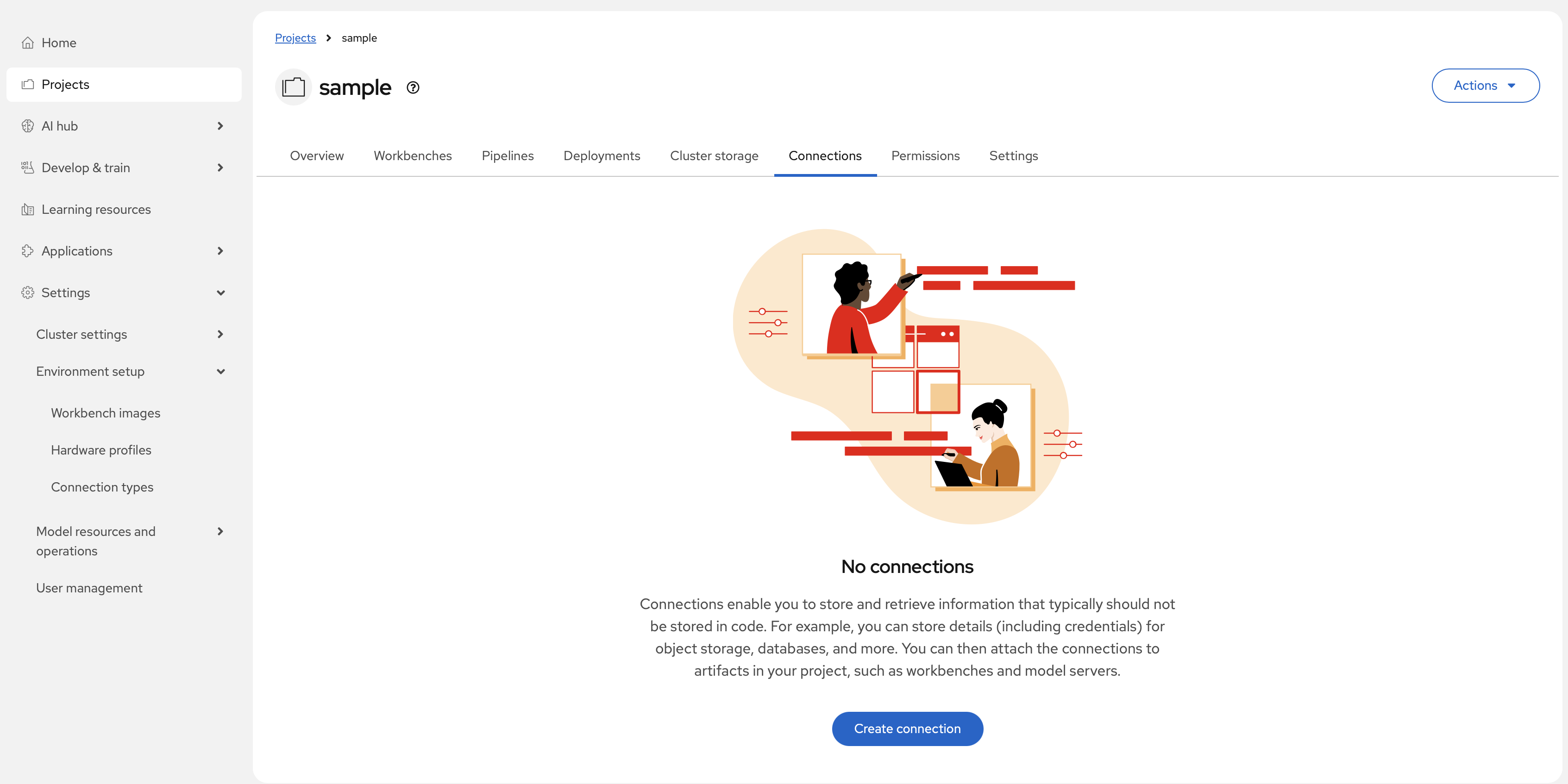
- Inside the project, open the Connections tab and select Create connection.
- Choose the connection type that matches your storage backend (for example, S3-compatible object storage or URI - v1), fill in the required fields, and save.
-
Open the deployment wizard
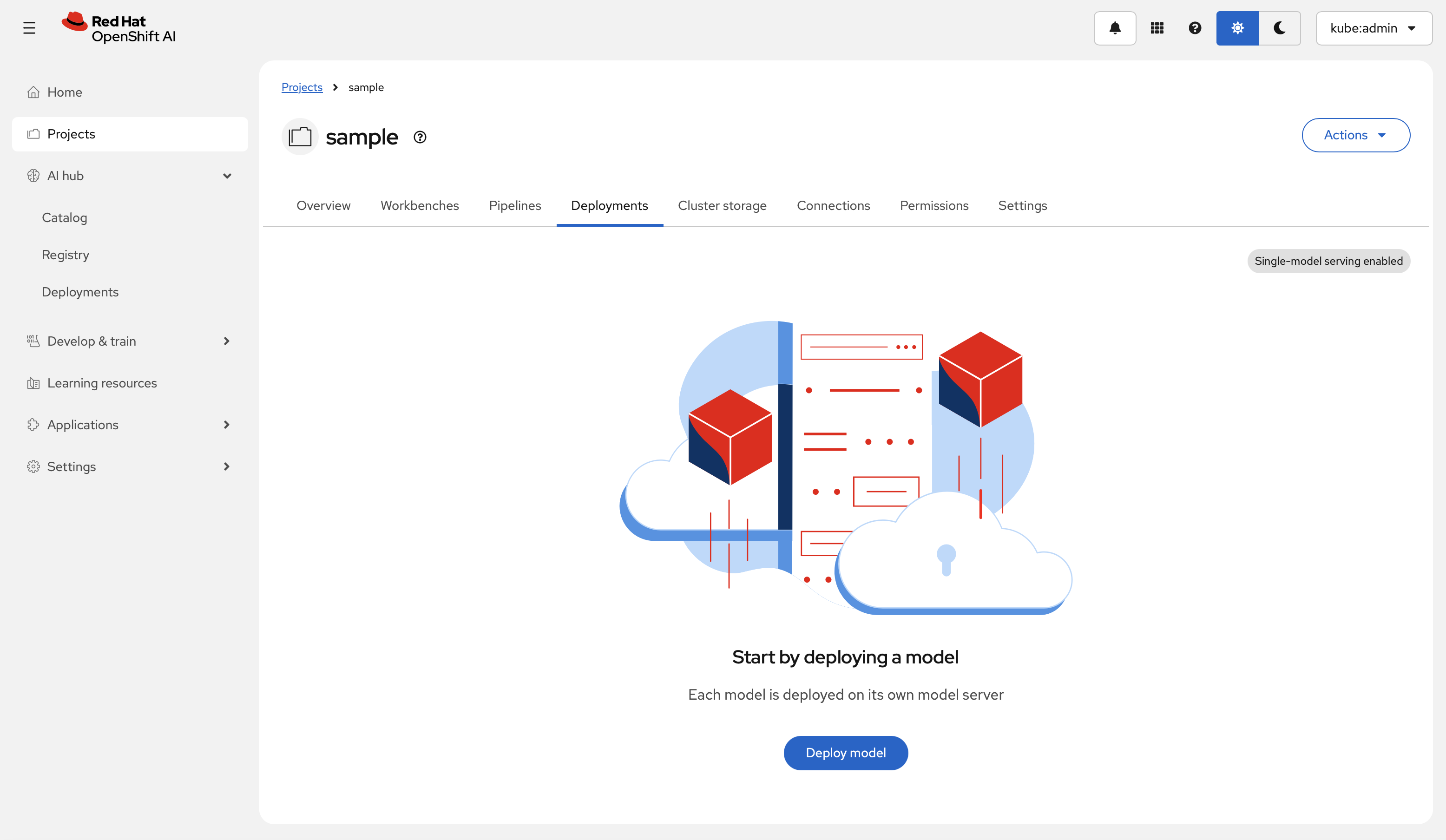
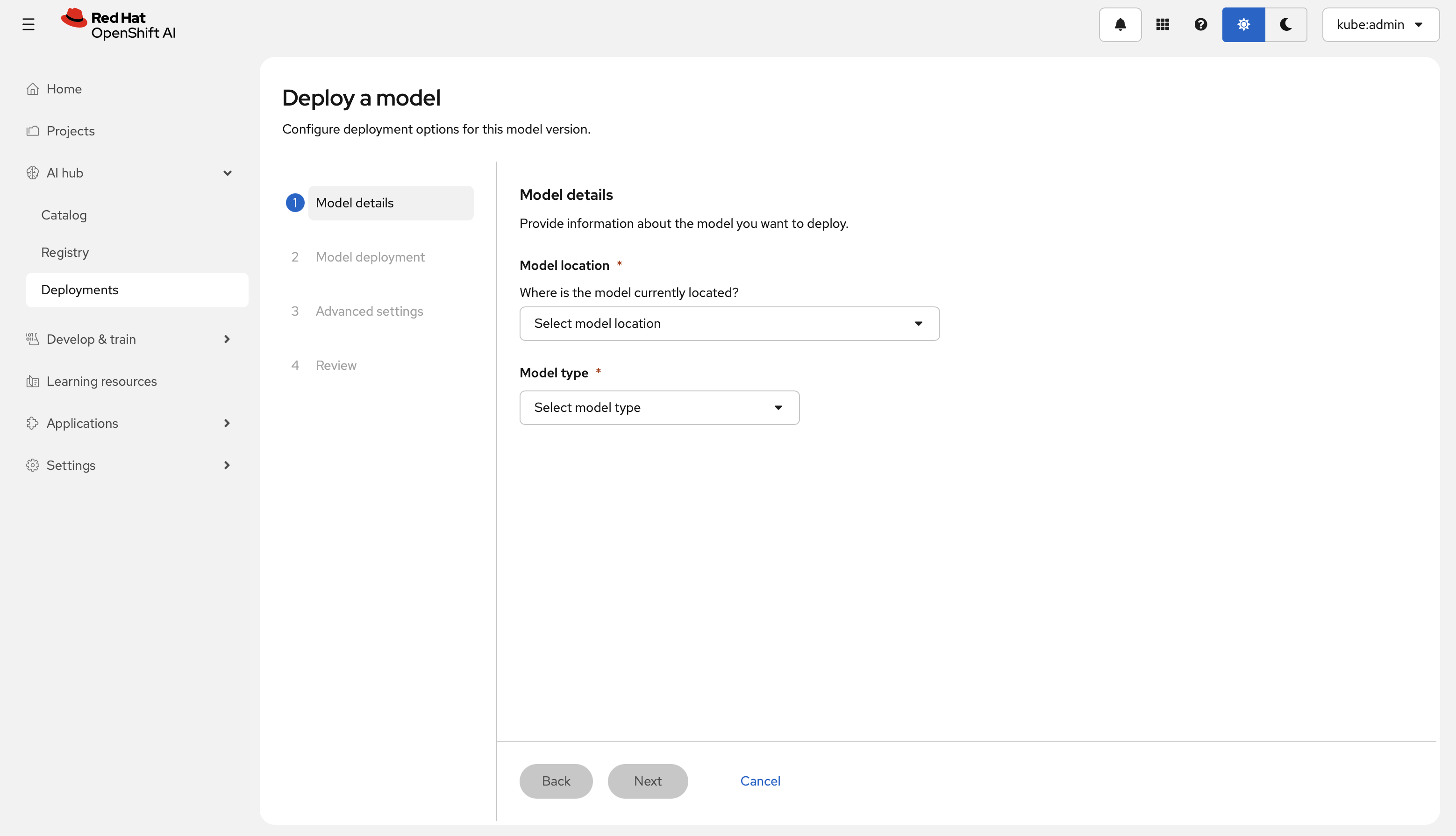
Inside the project, open the Deployment tab and select Deploy model. The Deploy a model wizard opens.
-
Step 1 — Model details
- Under Model location, select Existing connection and choose the connection created in step 2.
- Select the Model type: Predictive AI for classical ML models, or Generative AI for large language models (LLMs).
-
Step 2 — Model deployment settings
- Model deployment name: Enter a unique identifier for the deployment.
- Hardware profile: Select the profile that matches the target hardware (for example, the Rebellions NPU profile), and specify the number of accelerators.
- Serving runtime: Select the custom runtime configured for your hardware and model format.
-
Step 3 — Advanced settings
- Enable Model route to expose an external inference endpoint. Optionally, enable Token authentication to restrict access to the endpoint.
- In the Configuration parameters section, add any runtime arguments or environment variables required by the selected serving runtime. These settings apply only to this deployment and do not affect the global runtime configuration.
The deployment wizard internally creates InferenceService custom resource (CR) for KServe in Red Hat OpenShift AI. Once created, the KServe controller detects it and generates the required resources such as Deployments, Services and Pods necessary for model serving. InferenceService will be explained in detail below.
-
-
Deploy and verify
- Select Deploy to submit the deployment.
- Monitor the status on the Deployments tab. When the status becomes Available, the inference endpoint URL appears in the Inference endpoints column.
- Optionally, open the pod terminal in the OpenShift console and run
rbln-smito confirm that the Rebellions NPU is recognized inside the serving container.
InferenceService
An InferenceService defines a model-serving deployment: it routes requests to the selected runtime, applies the configured hardware profile, and exposes REST or gRPC endpoints. It typically specifies:
- Model location and format
- The
ServingRuntimeto use - The
HardwareProfileto be applied - Whether passthrough routing is enabled for REST or gRPC
- HTTP or gRPC access settings for the deployed model
There are two ways to create InferenceService.
- Using the OpenShift AI UI: In a Project, open the Deployment tab and select Deploy a model. The wizard automatically creates an
InferenceServiceCR. - Using YAML: Apply a manifest directly:
The following example shows an RBLN InferenceService that deploys a Qwen3 model with the vLLM-based runtime.
After InferenceService CR is deployed, proper functioning can be checked by the following command.
Notes
- Compilation and warm-up are required for model serving in vLLM RBLN. These run automatically at engine startup when the first request is processed (for example. when
LLM(...)is initialized). - The first startup is slower because graph compilation and warm-up are performed.
- Subsequent runs reuse cached binaries by default (under
$VLLM_CACHE_ROOT/rbln, typically~/.cache/vllm/rbln). - Changing model or runtime shape parameters (for example,
max_num_seqs,max_num_batched_tokens, orblock_size) may trigger additional compilation.